Finding an Excel tutor who gets results
By Kiss János 14 min read

Do you actually need an Excel tutor?
Most people who search for an Excel tutor have already watched hours of YouTube tutorials.
They know where the SUM button is.
What they lack is the ability to turn a messy spreadsheet into something their boss, professor, or hiring manager will trust.
Self-teaching works well when you have time and no pressure. If you want to build general spreadsheet skills over a few months, free resources from Microsoft, community forums, and video channels will get you surprisingly far.
Many confident Excel users learned exactly this way.
But the math changes when a deadline appears.
A job interview with a timed Excel test in ten days. A class project due Thursday. A workplace report that has to reconcile by month-end.
In these situations, a tutor compresses weeks of trial and error into a few focused hours, because they can spot the exact concept you’re missing instead of making you sit through a 40-minute video to find it.
It also helps to separate two very different needs:
Skill-building means you want to become generally better at Microsoft Excel, from formulas to charts to analysis. Task rescue means you have one broken workbook, one formula returning #N/A, or one dashboard that has to work by tomorrow.
Both are valid reasons to get help. They just call for different kinds of sessions.
If you’ve rewatched the same tutorial three times and still can’t apply it to your own file, the problem isn’t effort. It’s feedback. That’s what a tutor provides.
This guide walks through the full picture.
First, how to diagnose your actual skill gap. Then a practical learning roadmap from basics to dashboards, how to choose a tutor who fits your level and software, and how to prepare for a first session so you get real value from it.
What an Excel tutor actually teaches
Here’s the surprising part: good Excel tutors spend less time teaching functions than you’d expect.
Most of the work is figuring out why a learner gets stuck, and that answer looks different for almost everyone.
Learners tend to fall into four profiles:
The total beginner needs comfort with the interface, data entry, and basic Excel formulas. The formula troubleshooter knows the basics but keeps hitting errors with lookups, nested IFs, or cell references that break when copied.
The data-analysis learner wants to summarize large datasets, build PivotTables, and produce reports. The project-deadline rescue has a specific deliverable due soon and needs targeted help to finish it correctly.
Diagnosing your skill gap first
A strong tutor won’t start with a lesson plan.
They’ll start with your file.
Reviewing a sample workbook tells them more in five minutes than an hour of conversation, because it shows how you structure data, which Excel functions you rely on, and where your logic breaks down.
Next come questions about your goals. Are you preparing for a finance interview, finishing a statistics assignment, or trying to stop spending six hours on a weekly report?
The answer shapes everything that follows.
Finally, they look for recurring errors.
If every lookup fails, the issue is often inconsistent data types (numbers stored as text, trailing spaces) rather than the formula itself.
Fix the root cause and a dozen symptoms disappear at once.
Tutoring versus a course versus one-off help
These three options get lumped together, but they serve different purposes.
A structured multi-week course follows a fixed curriculum. Everyone covers the same material in the same order, which is efficient for groups but slow if you already know half of it.
Personalized tutoring is adaptive. The tutor skips what you know, slows down where you struggle, and builds each session around your actual skill gaps.
One-off technical help is narrower still: fixing a single file, debugging one formula, or finishing one task. It’s useful when the clock is ticking, and less useful for long-term growth.
An Excel tutor can help with assignments, debugging, and workplace deliverables. The ethical ones, though, focus on teaching you to solve the problem yourself rather than handing back a finished file.
That matters for school integrity policies.
It matters even more at work, where you’ll need to update that report next month without help.
A learning roadmap from basics to dashboards
Skipping steps is the most common reason people plateau in Excel. Someone learns XLOOKUP before understanding clean data structure, and then wonders why their lookups return errors half the time.
A sensible roadmap builds each skill on the one before it.
The sequence below is roughly how experienced tutors structure learning for most adults. Your pace will vary, but the order holds up for nearly everyone.
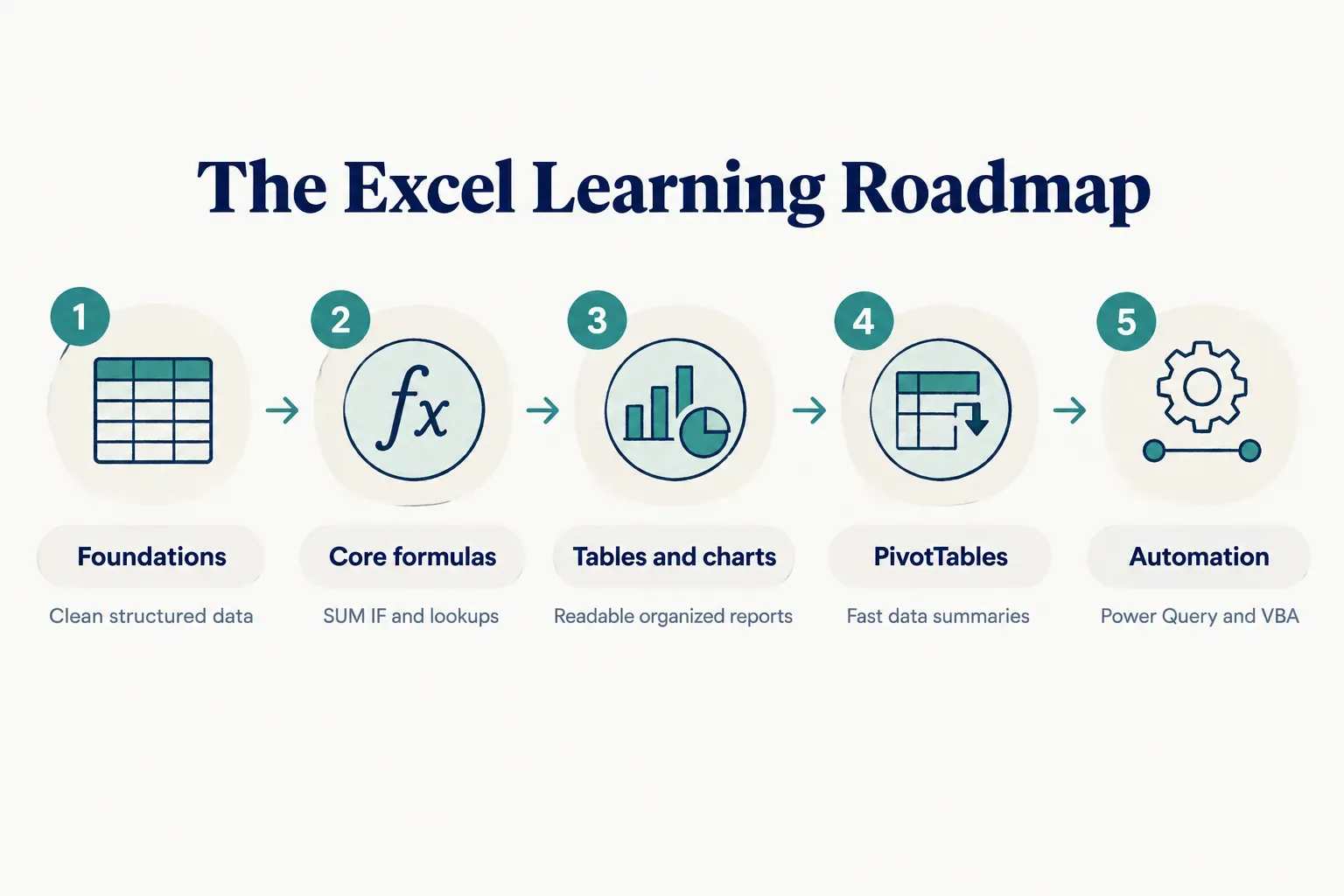
Spreadsheet foundations
Before writing a single formula, you need data that formulas can actually work with. These habits prevent most of the errors learners blame on “Excel being difficult.”
- Moving around efficiently: Learn to jump between sheets, select entire columns, and freeze panes so headers stay visible. A few Excel keyboard shortcuts (Ctrl+Arrow to jump to the edge of data, Ctrl+Shift+Arrow to select it) save minutes on every task.
- Clean data structure: Keep one record per row and one field per column. No merged cells in data ranges, no blank rows breaking up the table, and no totals mixed into the raw data.
- Consistent data types: Dates should be real dates, numbers should be real numbers, and text should be text. A single “1,200” stored as text can quietly break a SUM or a lookup.
- Clear headers: Every column needs a unique, descriptive header in a single row. This becomes essential later for sorting and filtering, Tables, and PivotTables.
- Data validation and error checking: Use data validation dropdowns to control what people can type into a cell. Get in the habit of spreadsheet error checking by scanning for green error triangles and testing totals against known values.
Formulas and functions that matter
Excel has more than 450 functions.
You need about a dozen to handle most workplace tasks, and the first concept to master isn’t a function at all.
- Relative and absolute references: A relative reference like A1 shifts when you copy a formula. An absolute reference like $A$1 stays locked. Understanding relative and absolute references explains why formulas “break” when dragged down a column, and fixing it is often a single F4 keypress.
- SUM (plus AVERAGE, MIN, MAX): The basic aggregation functions. Simple, but they teach you how ranges work.
- IF: Your first logic function. It lets a spreadsheet make decisions, such as flagging overdue invoices or labeling sales as above or below target.
- XLOOKUP and VLOOKUP: Lookups pull matching data from another table. XLOOKUP and VLOOKUP both do this, but XLOOKUP is more flexible and less fragile. Learn VLOOKUP anyway, because older workbooks and many interview tests still use it.
- SUMIFS: Adds values that meet multiple conditions, like total sales for the East region in March. This one function replaces a surprising amount of manual filtering.
- COUNTIFS: Counts records that meet multiple conditions. Together with SUMIFS, it handles most everyday reporting questions.
PivotTables, dashboards, and automation
Once formulas feel natural, the focus shifts from calculating to presenting and scaling your work.
- Excel Tables: Converting a range to a Table (Ctrl+T) gives you automatic expansion, structured references, and built-in filters. Introduce Tables as soon as you work with datasets that grow over time.
- Conditional formatting: Use conditional formatting to highlight what matters (late items, top performers, negative variances) so readers see the story without reading every number.
- Basic charts: Column, line, and bar charts cover most needs. Pick the chart that matches the question rather than the one that looks most impressive.
- PivotTables and PivotCharts: A PivotTable can summarize 50,000 rows by region, month, and product in seconds. Pair it with PivotCharts and slicers and you have the building blocks of interactive Excel dashboards.
- Power Query: When you find yourself cleaning the same export every week, Power Query records those cleaning steps and repeats them with one click. It’s the most underrated skill for data cleaning.
- Power Pivot and VBA: Power Pivot handles data models with multiple related tables. VBA automates repetitive tasks with macros. Both are advanced, and most learners don’t need them until the earlier skills are solid.
- AI-assisted formulas: As of 2026, Copilot and other AI tools can draft formulas from plain-language prompts. They’re genuinely helpful, but you still have to verify the logic, check the source data, and confirm the output is accurate. An AI-generated formula that references the wrong column will produce confident, wrong numbers.
Choosing the right tutor for your level

Being great at Excel and being great at teaching Excel are two different skills. Plenty of spreadsheet wizards can build a 20-tab financial model but can’t explain why your SUMIFS returns zero.
You want someone who can do both.
Teaching ability and real-world experience
Start with a simple test.
Ask a prospective tutor to explain a formula in plain language, something like “What does XLOOKUP actually do?” If the answer is clear enough that a non-technical friend would understand it, that’s a strong sign.
Other questions worth asking:
Do they have business or workplace Excel experience?
Academic knowledge is fine for coursework.
But if you need to build a monthly sales report or reconcile accounts, a tutor who has done that work in a real job will know the shortcuts, the common pitfalls, and what managers actually look for.
Do they adapt their pace? A good tutor checks your understanding as they go. They ask you to try a formula yourself, watch where you hesitate, and adjust.
If a tutor talks for 45 minutes straight while clicking through their own screen, you’ll leave impressed… and unable to repeat any of it.
Software version and industry fit
Your Excel version matters more than most learners realize. Microsoft 365 and Excel 2024 include XLOOKUP, dynamic arrays, and functions like FILTER, SORT, and UNIQUE.
Excel 2019 and earlier desktop versions don’t.
Platform matters too.
Excel for Mac doesn’t include Power Pivot, and Excel for the web can’t run VBA macros. If your tutor teaches on Microsoft 365 for Windows and you use an older Mac version, half of what they show you might not work on your machine.

Industry fit is the other filter.
Finance workflows lean on variance analysis, financial modeling, and accurate rounding. Retail uses inventory tracking and sales by store or SKU. HR focuses on headcount, scheduling, and confidential employee data, while nonprofit reporting often revolves around grant tracking and donor summaries.
A tutor who understands your workflow can teach you skills you’ll use on Monday morning.
What to include when requesting help
Vague requests get generic help.
“I need help with Excel” could mean anything from finding the save button to building a Power Query pipeline.
Platforms like Frendex let learners describe their skill level, goal, deadline, and Excel version when they request a tutor. That detail means you get matched with someone suited to your specific task rather than scrolling through a generic listing of people who claim to “know Excel.”
A strong request might read: “Intermediate user, Microsoft 365 on Windows. Need to build a sales dashboard with PivotTables for a team meeting in 8 days. Lookups keep returning #N/A.”
A tutor can tell within seconds whether they’re the right fit.
Preparing for your first session and practicing after
The first session sets the tone for everything that follows. Learners who show up with a real file and a clear goal often make more progress in one hour than others make in three.
Preparation is the difference.
What to bring to the first session
Work through this checklist a day or two before you meet. It takes about 30 minutes and pays for itself immediately.
- Sanitize a copy of your real workbook. Replace client names, account numbers, salaries, and any personal or financial details with dummy values. Sharing raw confidential data with an outside tutor can breach company policy, privacy regulations, or client agreements, so always work from a scrubbed copy.
- Keep the structure intact. Change the values, not the layout. The tutor needs to see your real columns, formulas, and quirks, because that’s where the learning happens.
- Write down one clear goal. “Build a summary that shows monthly sales by region” is far more useful than “get better at Excel.” One focused goal per session keeps the hour productive.
- Describe your current skill level honestly. List what you can do comfortably and what confuses you. Overstating your level wastes time on concepts that go over your head.
- Collect specific error examples. Screenshot or note the exact cells returning #N/A, #VALUE!, or wrong totals. Specific errors give the tutor a direct path to the underlying gap.
- State your deadline. A tutor will plan very differently for an interview in five days than for a skill-building goal over three months.
Realistic projects to practice between sessions
Tutoring sessions introduce skills.
Practice between sessions makes them stick.
These Excel practice exercises mirror real workplace tasks and build on each other.
- Build a monthly budget. Track income and expenses by category with SUM, simple IF statements, and conditional formatting for overspending. It’s the best first project for absolute references.
- Create a sales tracker. Log sales by date, rep, region, and product, then use SUMIFS and COUNTIFS to answer questions like “Which rep sold the most in Q2?”
- Set up an inventory sheet. Use XLOOKUP to pull product prices from a separate table, data validation for product codes, and conditional formatting to flag low stock.
- Design an employee schedule. Practice date and time functions, dropdown lists, and COUNTIFS to check that every shift has coverage.
- Produce a client-report dashboard. Combine an Excel Table, a PivotTable, a PivotChart, and slicers on one clean sheet. This project ties together everything you’ve learned.
- Document your formulas as you go. Add a notes column or a separate “README” sheet explaining what key formulas do. Future you, and your coworkers, will be grateful.
- Build habits that signal workplace readiness. Use keyboard shortcuts instead of menus, apply consistent formatting (one font, aligned decimals, clear headers), and name your sheets descriptively. These details are what make a spreadsheet look professional.
Your next step toward workplace-ready Excel
“Good at Excel” is too vague to measure.
So here’s a practical definition of workplace-ready you can actually test yourself against.
You can take raw, messy data and organize it into a clean structure. You can write reliable formulas that don’t break when copied or when new rows are added.
You can build a basic PivotTable summary from that data. And you can explain the result clearly to someone else, without hiding behind jargon.
Hit all four and you’re ready for most roles that list Excel as a requirement.
That’s the foundation for workplace data analysis, whether you work in finance, operations, HR, or a nonprofit.
Your next move is simple.
Pick a real file with a real problem: the report that takes too long, the formula that never works, the dataset nobody knows how to summarize. Then book a single diagnostic session with an Excel tutor before committing to a longer plan.
One session will tell you exactly where your gaps are, how long closing them should take, and whether this tutor is the right fit.
Low risk.
High clarity.
And a much faster path to the skills that matter.
Frequently asked questions
How much does an Excel tutor cost?
Excel tutoring costs vary widely, typically ranging from affordable rates for students and newer tutors to premium rates for experienced finance or data professionals. Pricing depends on the tutor's background, the complexity of the topic, and session length. Advanced topics like Power Query, financial modeling, or VBA usually cost more than beginner fundamentals, and many tutors offer discounts on packages of sessions.
Is it worth getting an Excel tutor?
An Excel tutor is worth it when you face deadline pressure, learn best with direct feedback, or have stalled after weeks of self-study. If a job offer, grade, or work deliverable depends on your skills, a few targeted sessions can save dozens of hours. If you have no deadline and enjoy figuring things out alone, free resources may be enough.
Can I learn Excel in 30 days?
Yes, 30 days is enough to build solid foundational and formula skills with consistent daily practice. Most learners can handle clean data structure, cell references, SUM, IF, lookups, and SUMIFS within a month. PivotTables and dashboards usually need more practice time, because building them well requires applying many earlier skills at once.
What is the best way to learn Excel for beginners?
The best way for beginners to learn Excel is to start with clean data habits, then basic formulas, then Tables and simple charts. Work on a real file you care about (a budget, a hobby tracker, a work list) rather than abstract exercises. Real data creates real problems, and solving them builds lasting skill.
What are the top Excel skills employers look for?
Employers most often look for formula proficiency, PivotTables, data cleaning, dashboards, and clear communication of findings. Lookups (XLOOKUP and VLOOKUP) and SUMIFS appear in many interview tests. The often-overlooked skill is communication: being able to explain what your numbers mean to someone who has never opened your spreadsheet.
How do I find an Excel tutor near me?
You can find an Excel tutor by searching both local and remote options, since many tutors work online and in person. Community colleges, libraries, and professional networks are good starting points. Map-based apps like Frendex show tutors available near you for in-person sessions alongside those offering online lessons, so you can compare options and choose whichever format suits your schedule.
Need a hand with something?
The Frendex map shows you who is available near you, in real time.
Get the app free Get the app freeFree, no card needed
Related articles

Brow lamination: What it does and how to stay safe
What brow lamination actually does to your hair, the overprocessing signs to watch for, and how to spot a risky technician before you book.

Pest control cost in 2026: What you'll really pay
Real 2026 pricing for one-time visits, recurring plans, and termite or bed bug jobs. Learn what drives $95 vs $1,400 quotes before you sign.

Is your car asking for a wheel alignment?
Learn the real symptoms of bad alignment vs tire balance or wear issues. See what a technician checks and how to read your shop report before paying.